


If your team is working with design files, SolidWorks PDM is a tool that helps you manage them. It protects files from loss, simplifies their retrieval, and enables work to be done with ease. With its useful features, it helps teams work together better and get more done.
In today’s busy world, it is important to manage design files quickly and correctly. SolidWorks PDM makes this easy by reducing mistakes, improving teamwork, and ensuring everyone uses the latest file version. It is a smart way to save time and stay organized.
- 1 What is SolidWorks PDM?
- 2 SolidWorks PDM versions: Standard vs. Professional
- 3 Key Features of SolidWorks PDM
- 4 SolidWorks PDM Client Installation
- 5 Vault View Configuration in SolidWorks PDM
- 6 SolidWorks PDM Common Issues & Troubleshooting
- 7 Network Communication Issues see on SolidWorks PDM
- 8 Advanced Tips and Tricks for Maximizing SolidWorks PDM
- 9 Future Trends in SolidWorks PDM (Product Data Management)
- 10 FAQs About SolidWorks PDM
- 11 The Bottom line
What is SolidWorks PDM?
SolidWorks PDM is a secure and safe place to store all your CAD and design process data created by using SolidWorks.
It has the option to create a customizable space where your team can safely store design files and other necessary details. This means that when working with SolidWorks PDM, you do not need to worry about versions or losing any information. It also enables members working remotely to contribute to designs if they are using the platform.
SolidWorks PDM versions: Standard vs. Professional
PDM offers two versions to suit the needs of different users: PDM Standard and PDM Professional. Both versions provide secure and efficient tools to manage your data, but they are tailored for specific business requirements. PDM Standard is perfect for smaller, single-site companies needing straightforward data management, while PDM Professional is designed for distributed teams requiring advanced features and greater flexibility.
Whether your team works in a single office or across multiple locations, PDM ensures streamlined collaboration and reliable data handling.
What follows are some of the features of PDM that user should know before choosing to use what version.
| SolidWorks PDM Standard Features | SolidWorks PDM Professional Features |
| Automatically track changes and view revisions in the task pane. | Access data from anywhere using a web browser on any device. |
| Notify team members of status changes and required actions. | Automatically notify users of file or folder updates. |
| Convert SolidWorks Drawing files to PDF during workflow transitions. | Manage and utilize Bill of Materials (BOM) for downstream processes. |
| Preview CAD data dynamically using eDrawings. | Connect with various third-party CAD tools. |
Key Features of SolidWorks PDM
A common question that may come to mind is: Why do we need SolidWorks PDM? What makes it so important to integrate PDM with SolidWorks? To answer this, let’s explore some key features of SolidWorks PDM that highlight its value. Here are some key benefits of using PDM:
- Easy Automatic Login Setup
- File Access Logs (Professional Version)
- View Permission Groups
- Tooltips for Data Cards
- Restoring and Managing Deleted Users
Now, let’s explore these main features in detail:
Easy Automatic Login Setup
In SolidWorks PDM, you can set up automatic login using either a specific username or your Microsoft Windows profile. With the administration tool, you can configure this feature by going to local settings, selecting “settings,” and then toggling on the “use automatic login for this vault” option. You can choose to log in automatically with a set username and password, or simply use your Windows login.
File Access Logs (Professional Version)
In the Professional version of SolidWorks PDM, you can track which files have been accessed from a specified vault. To view this log, go to the Administration tool, right-click the vault, and select “Show the Get Log.” This feature tracks files downloaded from the archive server to a local client, Web2 server, or Web API server.
View Permission Groups
SolidWorks PDM makes it easier to see which groups have specific permissions. To do this, open the Administration tool, go to the user properties page, and hover over any permission to see which groups have been granted that permission.
Tooltips for Data Cards
The great thing about SolidWorks PDM is that it now lets you add helpful tooltips to data cards. Previously, tooltips were only available in tools like DriveWorks. Now, when you hover over data card controls in the file explorer, you’ll see a tooltip with more information.
Restoring and Managing Deleted Users
Solid Works PDM lets you restore deleted users or block their login access. To restore a deleted user, open the Administration tool, go to User Groups Management, select “Users,” then “Deleted Users,” and click “Restore Login.” To block a user from logging in, follow the same steps and select “Refuse Login” instead.
SolidWorks PDM Client Installation
The process is straightforward when installing for the first time but requires attention to detail. Before starting, it’s essential to check that the system meets the required specifications. The process includes setting up the server and connecting each computer to it, which can feel a bit tricky at first.
However, understanding how the client interacts with the PDM vault simplifies the installation. Over time, handling common problems becomes easier too, making future installations faster and smoother.
To install SolidWorks PDM on your existing SolidWorks installation, here are the steps to follow: And if you have not downloaded SolidWorks, we have a separate guideline to download SolidWorks.
【2025】SolidWorks Download Made Easy: Step-by-Step Guide for Beginners and Professionals
Modifying SolidWorks PDM Installation
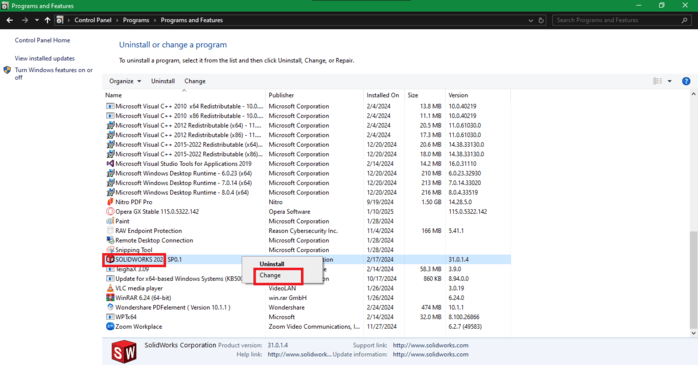
Open Control Panel, go to “Programs and Features,” and find the SolidWorks icon in the installed programs list. Here you have to right-click on the SolidWorks icon and click on “Change.” After clicking it, you may find a message: “A reboot is pending.” You simply have to click OK.
Starting SolidWorks PDM Installation

After clicking the Modify your installation option, this will take you to the Product Selection page. If you are on the Serial Number page, click “Next.” If you are on the Summary page, click “Back.”
If you are on the product selection page, then you can see SolidWorks PDM Client. It may not be at the top of the page, and you will have to scroll down to find it. Install by selecting SolidWorks PDM Client and click on “Next.”
Changing SolidWorks PDM options

To find the SolidWorks PDM options on the options page, you may be required to scroll down a little bit, depending on the version. Once you find it, click on “Change.”
Selecting SolidWorks PDM version

SolidWorks PDM Standard or PDM Professional with the appropriate license type are available for you to install. It is better to contact the PDM system manager if you are not sure which options to choose. After this, you return to the summary and finish the installation.
Vault View Configuration in SolidWorks PDM
After installing the PDM Client, you must configure Vault View to connect to Vault. You can create the Vault View using the View Setup tool, which can be found under Start > Programs > SolidWorks PDM > View Setup. And then follow the below-written steps:
Selecting the Server

In the View Setup tool, click “Next” to start the process. If your PDM Server is already shown, simply check the box next to it and click “Next.” If your PDM Server is not listed, click “Add” and enter the server name. Once you have selected the server, click “Next” to proceed.
Adding Browse Location
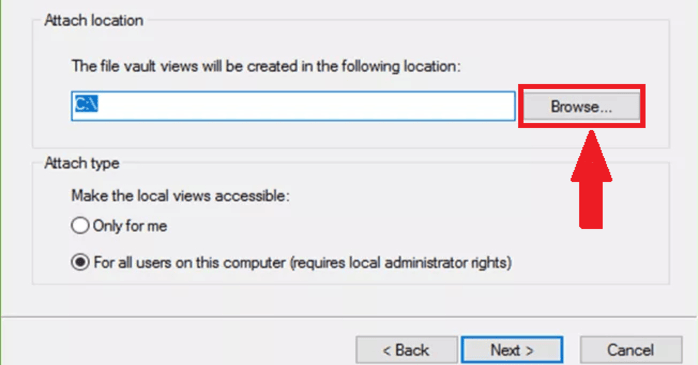
Choose the location where you want to install the Vault View, preferably on the C drive to avoid hitting the Windows path limit. For the Attach type, select who will have access to the Vault View. The default option, “For all users on this computer,” is recommended unless the computer is shared with others. Once all the settings is done, click “Next.”
Finishing the Vault View Configuration
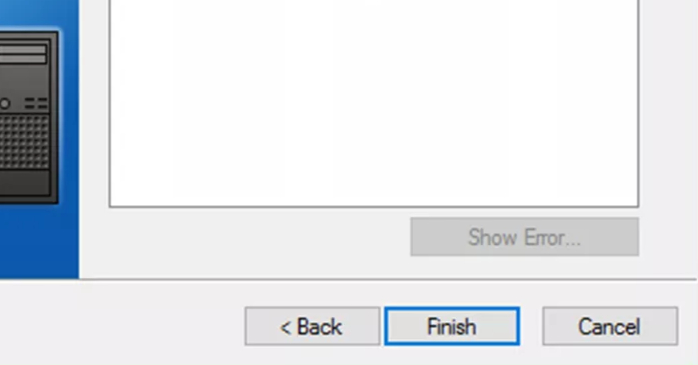
Check the settings and click “Finish” to complete the process and add the Vault View to your computer.
SolidWorks PDM Common Issues & Troubleshooting
Although proper setup can solve many issues, there are still some typical challenges, particularly with Windows logins in PDM. Fortunately, below is a list of these common errors and the solutions.
Troubleshooting varies depending on the type of error. Let’s explore some common issues and their solutions.
“Administrator has blocked your login.”
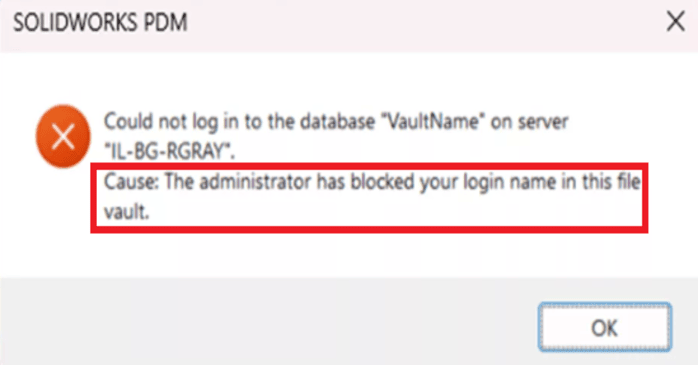
This message indicates that your account has been marked with the “Refuse login” permission by the admin in the administration tool.
To regain access, you must contact your vault admin and ask them to remove this restriction.
“The system is locked due to maintenance.”

This issue happens when a vault admin uses the “Block Logins” option in the administration tool, typically during major system changes like upgrades.
To resolve it, log in as an admin, right-click the vault name (admin), and select “Properties” to disable the block.
Next, you can select “Permit Logins” from the Properties screen.
Network Communication Issues see on SolidWorks PDM
A common reason for login problems in PDM is network communication. Antivirus software, firewall settings, or network routing issues can cause this. To fix it, first check if the basic communication methods PDM uses to connect its parts are working correctly.
Resolving the Network Communication Issue
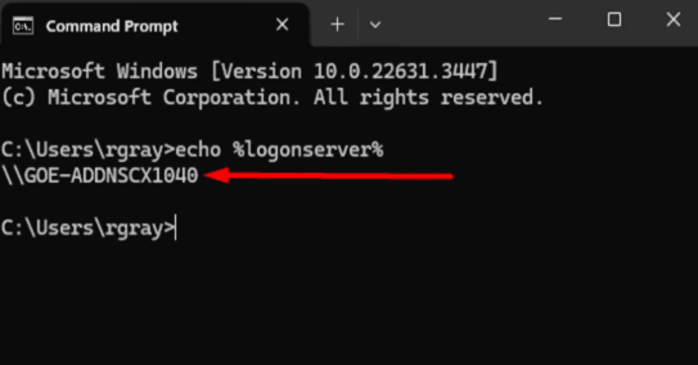
First, identify the domain controller used for authentication. To know this, make sure to log into the archive server. Now, go to “Command Prompt” and search “cmd” in the Windows Start Menu.
Type the following text in the Command Prompt and press Enter. The result will display the domain controller used by PDM archive server.
Advanced Tips and Tricks for Maximizing SolidWorks PDM
SolidWorks PDM offers powerful tools to improve team efficiency. The basic features are simple to use, but exploring advanced tips and tricks can further enhance productivity and streamline workflows. With experience in SolidWorks PDM customization, it’s clear that small adjustments can make a big difference. These tweaks can save time, reduce errors, and improve overall performance. The following insights explain practical ways to get the most out of SolidWorks PDM.
Customize Your Workflows
Customized workflows are one way to improve productivity. That means you can set up automatic processes to reduce manual work. By customizing your workflow templates, you can make sure that everyone follows the same process without needing constant reminders. It also prevents errors that can occur when steps are skipped or missed.
Use Variables for Better Control
With SolidWorks PDM, you can create your own variables to use in control properties such as part numbers or descriptions or whatever you want in the file. By doing this, you’re making it much simpler to add new files, and also more organized. Sometimes it’s good to use variables to save from mistakes, and to keep all files with the same naming convention.
Set Up Automatic File Revision Control
Manually managing file versions can be a time-consuming and error prone process. Automatic revision control in SolidWorks PDM helps ensure that every file is updated correctly without having to check in manually after every file versioning change. Automatic revisioning can be used to store up to date files only and safely store previous versions for future reference.
Use Search Filters and Favorites
Finding files in a large vault can be difficult, but SolidWorks PDM’s advanced search capabilities can simplify the process. This allows me to quickly find files without having to remember file name; You can set up search filters to save your most-used searches as favorites. When you are working on a big project or database, it can be a great time saver.
Leverage Permissions and Access Control
It is important to determine who can view or edit files. You can control permissions at a very fine level in SolidWorks PDM. For each user or group you can define access permissions so only these files are visible to them. It has been a very useful method for me to assure data security and to avoid accidental changes to files that you don’t want to lose.
Future Trends in SolidWorks PDM (Product Data Management)
SolidWorks PDM is likely to continue moving into cloud based systems, in the future. Teams will now have the ability to retrieve their design files anytime, anywhere. Remote workers will also be able to collaborate in real time with the help of the cloud. This will also relieve the burden of complex local servers, but will provide faster and more reliable access to vital data.
SolidWorks PDM also uses artificial intelligence (AI) and machine learning (ML). They’ll use these technologies to automate basic things like file organization, version control and spotting mistakes in code. As AI tools become smarter, they will suggest based on what has happened and suggest itself with the way it would have saved time and reduced errors.
Finally, SolidWorks PDM is likely to integrate much better with other business tools, such as ERP (Enterprise Resource Planning) and PLM (Product Lifecycle Management). It will be easier for the different departments to work together and even share data.
FAQs About SolidWorks PDM
The Bottom line
Without SolidWorks PDM, it is hard to stay organized and work efficiently as a team. It reduces mistakes and saves time, by securely managing design files and making it easy to collaborate between stakeholders. PDM can help you if you are smaller or part of a wider distributed team.
SolidWorks PDM is a powerful asset for any team, with advanced features. From automatic revision control to custom workflows, it offers many ways to simplify daily tasks. These features ensure that files are always up-to-date and organized, leading to smoother collaboration and fewer errors.
These features make sure that files are always up to date and orderly, allowing for easier, less error prone collaboration. Over the coming years, SolidWorks PDM will grow, with cloud integration and AI tools added to the mix. It will even make it easier for teams to work together from anywhere. With the acceptance of these future trends, SolidWorks PDM will continue to improve the product development process.


